

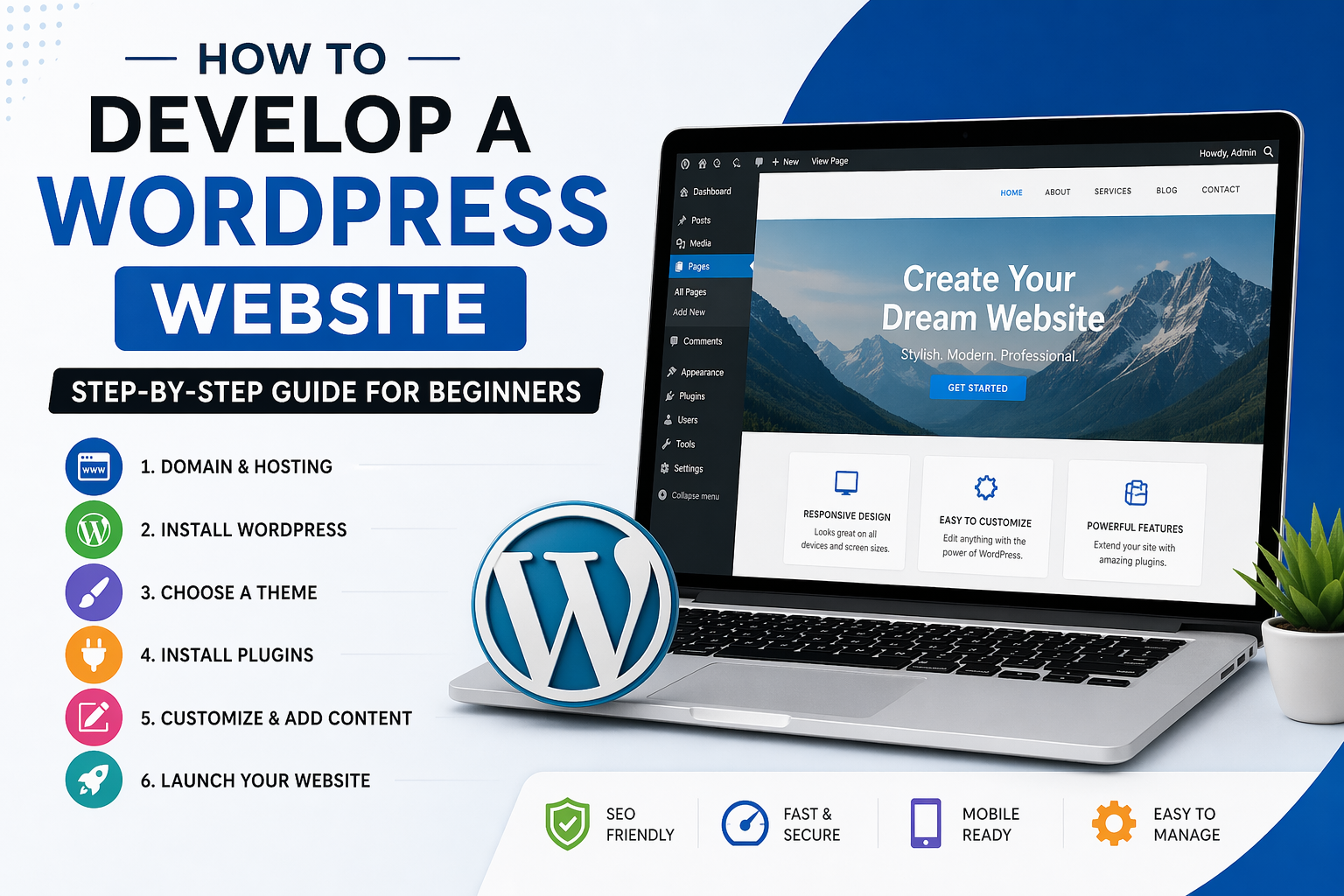
🧱 1. Understanding How WordPress Works (Create Professional WordPress Website)
When you use WordPress, you’re working with a CMS (Content Management System).
Think of it like this:
- Hosting = land (server space)
- Domain = address (yourwebsite.com)
- WordPress = house (your actual website system)
- Theme = design/interior
- Plugins = tools & appliances
🌐 2. Domain Name + Hosting (Foundation)
🔹 Domain Name
This is your website name:
- Example:
mybusiness.in - Buy from:
- GoDaddy
- Namecheap
- HOSTINGER
👉 Tips:
- Keep it short and easy to remember
- Avoid numbers and hyphens
- Use
.com,.in, or.org
🔹 Web Hosting
(Create Professional WordPress Website)
This is where your site lives.
Good providers:
- Hostinger (cheap & fast)
- SiteGround (reliable)
- Bluehost (beginner-friendly)
👉 What to choose:
- Shared hosting (best for beginners)
- 1-click WordPress install
- Free SSL (very important)
⚙️ 3. Installing WordPress
(Create Professional WordPress Website)
After buying hosting:
- Login to hosting dashboard
- Find:
- “WordPress Install” / “Auto Installer”
- Fill:
- Site Name
- Username
- Password
- Click Install
Now access:
yourdomain.com/wp-admin
👉 This is your control panel.
🎨 4. Themes (Design System)
(Create Professional WordPress Website)
Themes control:
- Layout
- Colors
- Fonts
- Overall look
Go to:
Dashboard → Appearance → Themes → Add New
Popular themes:
- Astra → fast & lightweight
- GeneratePress → performance-focused
- OceanWP → flexible
👉 Install → Activate
🧩 5. Plugins (Features)
Plugins extend functionality.
Go to:
Plugins → Add New
🔹 Must-have plugins
Page Builder
- Elementor
👉 Drag-and-drop design (no coding)
SEO
(Create Professional WordPress Website)
- Yoast SEO
👉 Helps rank on Google
Security
- Wordfence
Backup
- UpdraftPlus
Forms
- WPForms
eCommerce (optional)
- WooCommerce
📄 6. Creating Pages
Go to:
Pages → Add New
Important pages:
- Home
- About
- Services
- Blog
- Contact
🔹 Example: Creating Home Page
- Add title → “Home”
- Click Edit with Elementor
- Add:
- Heading
- Image
- Buttons
- Sections
👉 Design tip:
- Keep it clean
- Use white space
- Don’t overload text
🧭 7. Menus & Navigation
Go to:
Appearance → Menus
- Create menu
- Add pages
- Set as “Primary Menu”
👉 This creates your top navigation bar
🎯 8. Customization
Go to:
Appearance → Customize
You can edit:
- Logo
- Colors
- Typography
- Header/Footer
✍️ 9. Content Creation
Blog Posts:
Go to:
Posts → Add New
Write:
- Title (with keyword)
- Content
- Images
👉 Good content = traffic
🔍 10. SEO (Search Engine Optimization)
With Yoast SEO:
- Add keyword
- Optimize title
- Write meta description
Basic SEO rules:
- Use keywords naturally
- Add headings (H1, H2, H3)
- Optimize images
- Use internal links
⚡ 11. Performance Optimization
Slow websites lose visitors.
Use:
- Caching plugins (LiteSpeed Cache)
- Compress images (TinyPNG)
- Fast theme (Astra)
🔒 12. Security Setup
- Enable SSL (https)
- Use strong password
- Install Wordfence
- Limit login attempts
🚀 13. Launch Checklist
Before going live:
✔ Test on mobile
✔ Check all links
✔ Fix spelling errors
✔ Speed test (Google PageSpeed)
✔ Backup your site
💡 14. Advanced (Optional)
Once comfortable:
- Learn basic CSS
- Use custom domains email
- Add analytics (Google Analytics)
- Connect Google Search Console
🧠 Reality Check (Important)
A WordPress website is not “set and forget”:
- Needs updates
- Needs content regularly
- Needs SEO effort
👉 A good website = design + content + speed + marketing


I’m impressed, I have to admit. Rarely do I encounter
a blog that’s both educative and entertaining, and without a doubt,
you have hit the nail on the head. The problem is an issue that too few people
are speaking intelligently about. I’m very happy I stumbled across this
during my search for something regarding this.